Edit a View#
Modify existing views by updating filters, component properties and relationships.
Editing Filters#
Using the example from Create a View, once you are looking at the new filter view you created, you can edit the filters by clicking the Filter button in the toolbar to open the Filters panel.
After clicking into the Filters panel, you can adjust existing filters or add new ones to refine the components displayed in your diagram.
See below
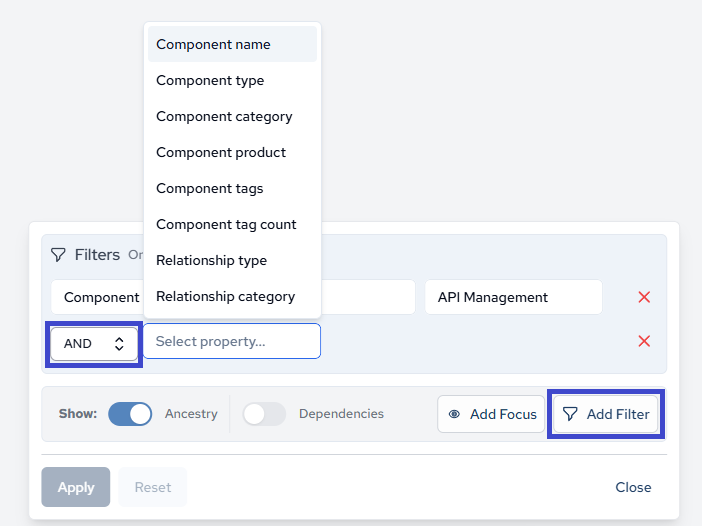
As stated previously, filters are a powerful way to get granular with your architecture and focus on specific areas of interest.
Viewing Component Details#
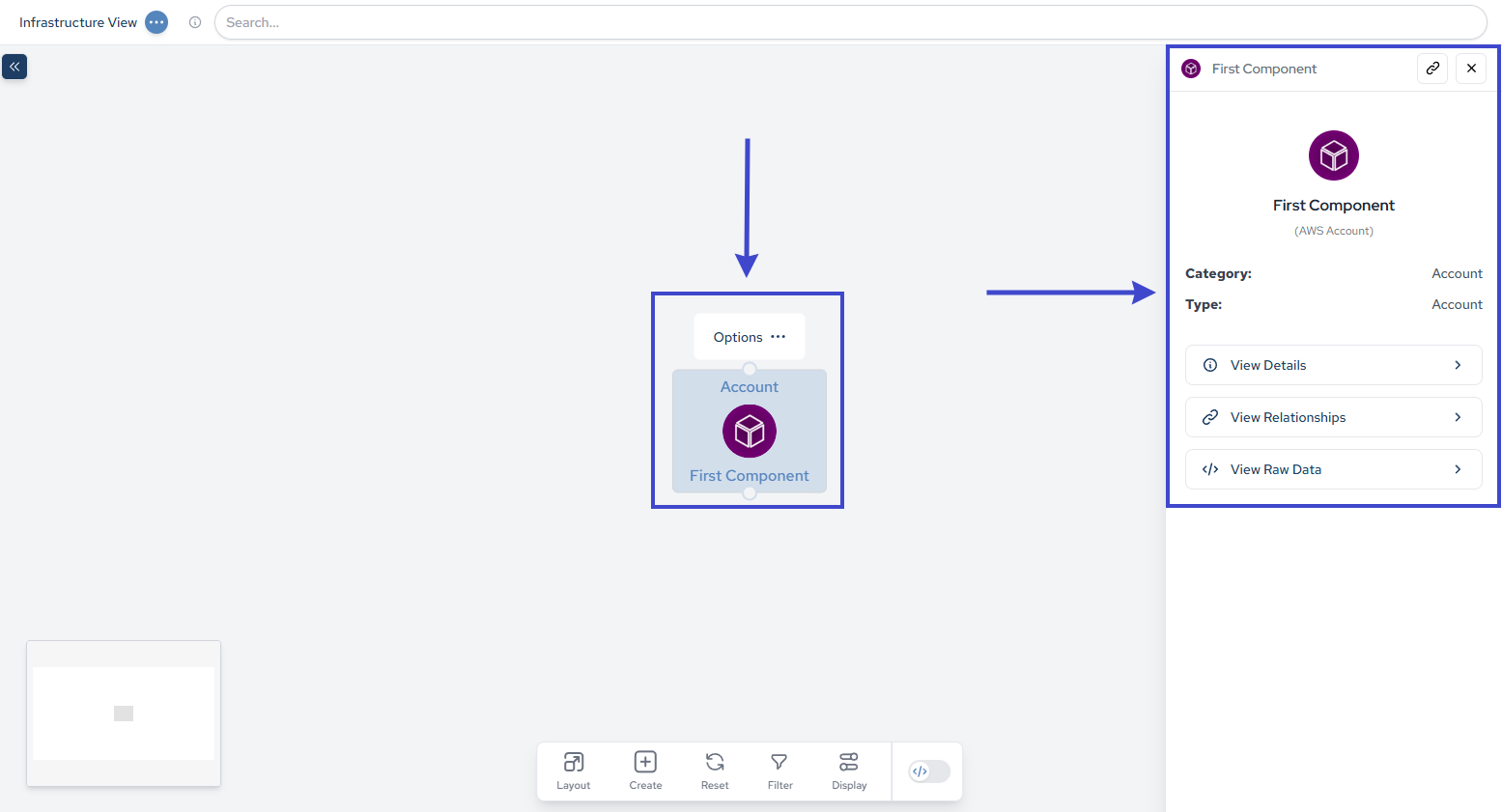
After opening a view, click any component to display its properties and relationships.
Editing Components#
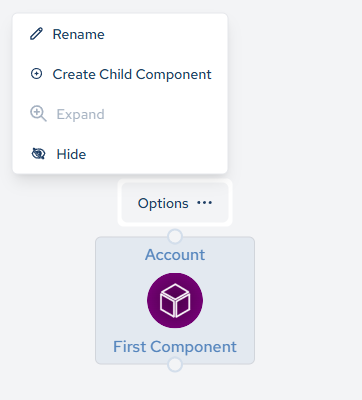
Add child components or rename existing elements to reflect infrastructure changes.
Editing Relationships#
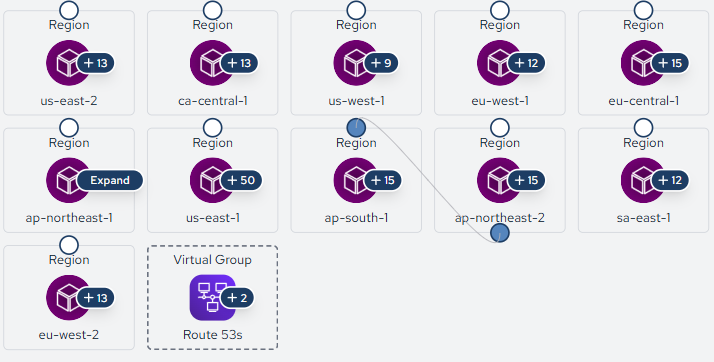
Click on a relationship line between components to modify its properties or change its type.
Saving Changes#
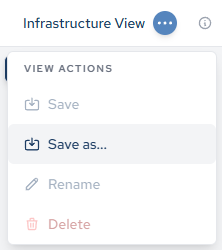
And as always, remember to save your changes by clicking the menu in the top left corner and selecting Save.